
Introduction
Using a Virtual Private Network (VPN) on your Android smartphone is an excellent way to secure your internet traffic, protect your privacy on public Wi-Fi, and access region-locked content. But what happens if you want to share that secure VPN connection with your Windows laptop or PC?
If you simply turn on your Android device's native Mobile Hotspot, you might be surprised to find that the connected PC does not inherit the VPN's protection. By default, Android's hotspot feature routes tethered traffic through your standard, unencrypted mobile data connection, bypassing the VPN tunnel entirely.
To successfully bridge this gap, you need a proxy tool to route your PC's traffic through the phone's active VPN application. One of the most reliable and popular tools for this is the HTTP Injector app, which features a built-in tethering tool called "Hotshare." This tutorial will show you step-by-step how to share any active VPN connection from your Android phone to a Windows computer.
Requirement
Before we start, make sure you have the following ready:
An Android smartphone with an active internet connection.
Any active VPN app installed and connected on your phone.
The HTTP Injector app (available for free on the Google Play Store).
A PC or Laptop running Windows.
A little bit of patience!
Step 1: Configure Your Android Device
First, we will set up the HTTP Injector app to act as a proxy server on your host device.
1. Open your preferred VPN application on your Android phone and connect to it. Once connected, minimise the app to let it run in the background.
2. Next, launch the HTTP Injector app.
3. Tap on the Tools tab located at the top or bottom navigation bar.

4. Under the Tools menu, select Tethering Tools.
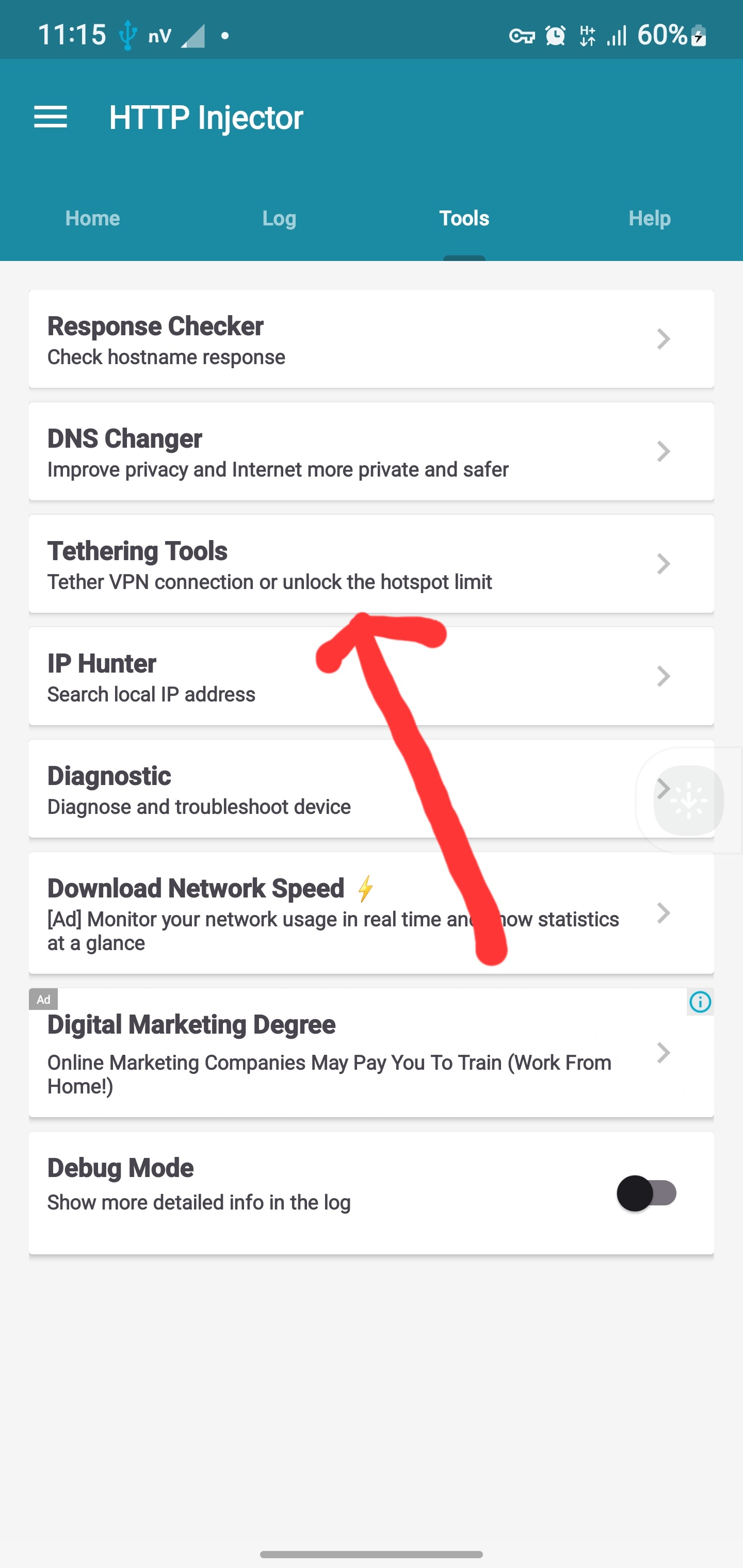
5. Tap on Hotshare

6. You will see a sequence of buttons. First, tap on Start Wi-Fi hotspot (Step 1) to turn on your phone's native hotspot.
7. Second, tap on Start Hotshare (Step 2).
8. Once Hotshare is active, the app will generate a specific Proxy IP Address (usually starting with 192.168...) and a Port Number (usually 44355). Write these details down, as you will need them for your computer.

Step 2: Configure Your Windows PC or Laptop
Now that your phone is broadcasting the VPN connection via a proxy, you need to configure your computer to receive it.
1. Turn on your PC's Wi-Fi and connect to your phone's mobile hotspot network. (Note: It may say "No Internet" at first. This is normal).
2. Press the Windows Logo Key on your keyboard, search for Internet Options, and press Enter to open the control panel window.

3. Click on the Connections tab at the top of the window.
4. Near the bottom, click on the button labelled LAN settings.

5. A new window will appear. Under the "Proxy server" section, tick the box that says "Use a proxy server for your LAN."

6. In the Address box, input the exact Proxy IP address generated by HTTP Injector in Step 1. In the Port box, input the port number.

7. Click OK on the LAN settings window, and then click OK on the Internet Options window to apply the changes.

Step 3: Verify the Connection
Refresh your PC by opening a web browser and navigating to a website or searching for something on Google. Your Windows computer should now have full internet access, and all its traffic will be securely routed through the VPN running on your Android phone!
Troubleshooting Tips:
No Internet on PC: If pages refuse to load, double-check the IP address and Port number in your LAN settings. A single wrong number will block the connection.
Disconnecting: When you are finished using the internet on your PC, remember to go back into your LAN settings and uncheck the "Use a proxy server" box. If you forget to do this, your PC will not be able to connect to normal Wi-Fi networks later!
Warning ⚠️ Tech Guruz Gh and its contents are protected by COPYRIGHT LAW (DMCA) with high-priority response rate. Reproduction without permission or due credit link back will cause your article(s) to be removed from search engines and disappearance of Ads on that page if monetized with Adsense..
JoinTelegram Group Telegram Channel